Here is some quick, painful math. In 2026, the standard “AI Operator” tech stack looks something like this:
- ChatGPT Plus: $20/month
- Claude Pro: $20/month
- Midjourney: $30/month
- Perplexity Pro: $20/month
- Commercial n8n/Make plan for heavy automation: $50/month
- Airtable/Notion Pro: $20/month
That is over $160 a month, or nearly $2,000 a year, just for the software required to participate in the modern digital economy. And the true cost is actually much higher: you are trading your privacy. Every line of code you prompt, every financial document you parse, and every personal email you draft is being transmitted to servers owned by trillion-dollar corporations to train their next-generation models.
I hit my breaking point six months ago. I realized I was renting my productivity and leasing my privacy. I decided to repatriate my data.
I didn’t buy a $5,000 server rig with dual NVIDIA H100 GPUs. I bought a piece of plastic the size of a paperback book for $150 on Amazon. It runs on an Intel N100 processor. It draws less power than a single LED lightbulb. And today, using an open-source hypervisor called Proxmox, this little box runs an entire fleet of autonomous AI agents that manage my home, sort my emails, and automate my business.
If you are intimidated by the phrase “Home Lab,” there is no reason to be. In this comprehensive, 2,500-word guide, we are going to demystify the hardware, install the software, and examine the exact local AI stack you can deploy this weekend to take back your data sovereignty and automate your life for free.
Part 1: Why the Intel N100 Is More Than Enough for AI
When people think of “AI hardware,” they think of large fans, RGB lighting, and melted power cables. How can a $150 Mini PC possibly run artificial intelligence?
The secret is the Intel N100.
Released quietly as part of the Alder Lake-N lineage, the N100 is a 4-core, 4-thread processor. Its true superpower is its Thermal Design Power (TDP): it runs at a staggering 6 Watts. You can leave this machine on 24 hours a day, 365 days a year, and it will cost you roughly $5 a year in electricity.
Why is this enough for AI?
We are not using this machine to train GPT-5. We are using it for Inference (running pre-trained models) and Orchestration (managing workflows).
While the N100 does not have a dedicated Neural Processing Unit (NPU) or a heavy GPU, it supports Quick Sync Video (QSV) which is surprisingly versatile, and more importantly, it can address up to 16GB (and unofficially 32GB) of DDR5 RAM.
When you run local AI models, RAM capacity is often a harder bottleneck than CPU speed. A 40-billion parameter model physically won’t fit into 8GB of RAM. But optimized, smaller models (like Llama 3 8B or Mistral v0.3) fit comfortably in 16GB of DDR5 alongside the operating system.
I use a basic Beelink or Minisforum N100 box equipped with 16GB of RAM and a 500GB NVMe SSD. It is completely silent, fits behind my monitor, and acts as the brain for my entire digital existence. (I briefly mentioned this setup in best free AI tools, but it deserves a deep dive).
Part 2: The Hypervisor Why We Use Proxmox Instead of Windows
The biggest mistake beginners make is taking their new Mini PC, installing Windows 11 on it, and trying to run their automation scripts from the desktop.
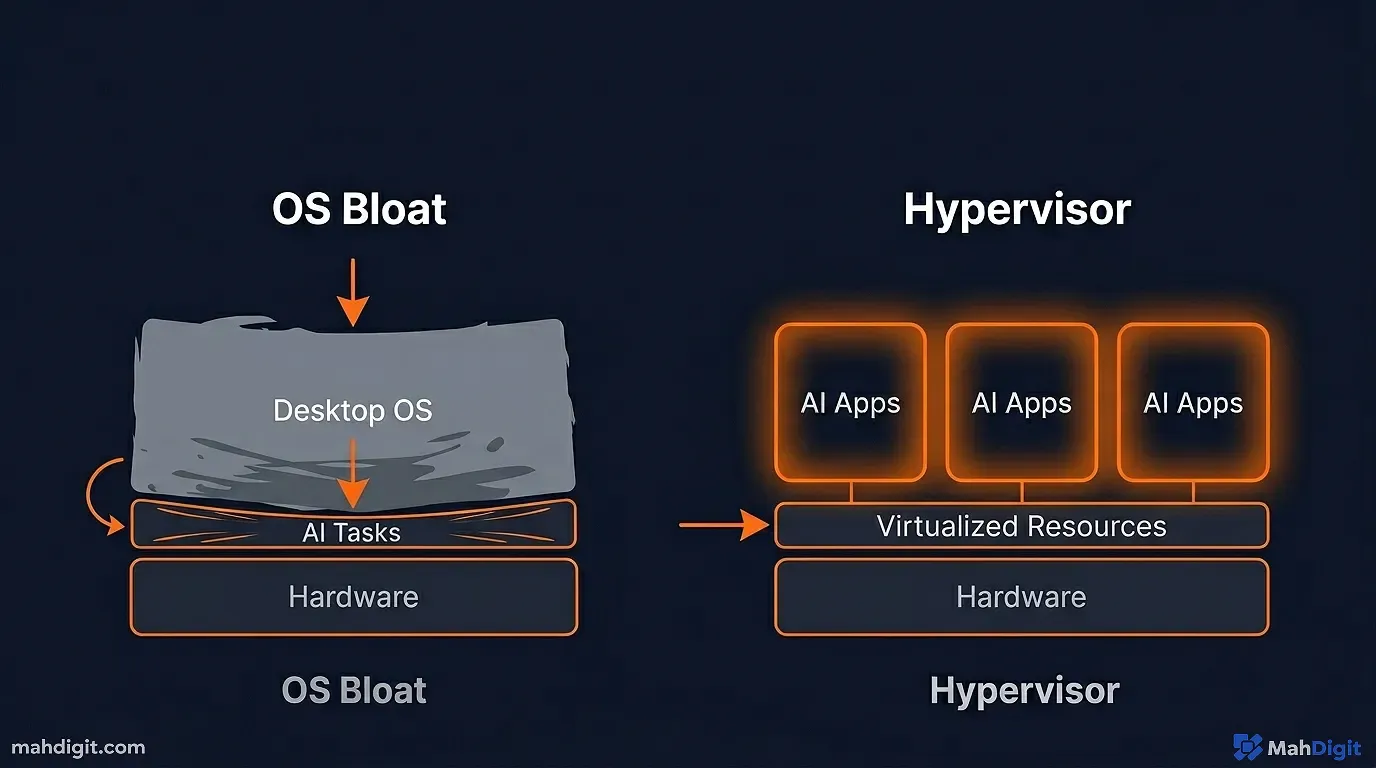
Windows is bloated. It forces updates that reboot your machine randomly, killing your automated workflows. It consumes 4GB of RAM just to render the start menu.
We need a “Bare Metal Hypervisor.” We need Proxmox Virtual Environment (VE).
What is Proxmox?
Proxmox is an open-source operating system designed specifically to run on servers. Its entire purpose is to take the physical hardware of your Mini PC (the CPU, the RAM, the storage) and slice it up into tiny, isolated digital computers called Virtual Machines (VMs) and Linux Containers (LXCs).
Why Proxmox is the main AI Orchestrator
- Isolation: If one of my AI agents goes rogue and accidentally deletes its entire hard drive, it only deletes the isolated 10GB container I built for it. The rest of the server is well fine.
- Snapshots: Before I install a messy new Python AI library, I click “Snapshot” in Proxmox. If the library breaks my system, I click “Rollback,” and 10 seconds later, the machine is how it was before I broke it.
- Resource Allocation: I can tell Proxmox, “Give my n8n workflow server 1 CPU core and 2GB of RAM. Give my local AI engine the remaining 3 cores and 12GB of RAM.” It prevents background services from stealing power from my active AI tasks.
Installing Proxmox is simple. You flash the ISO onto a USB drive (using a tool like BalenaEtcher), plug it into the N100, boot from the USB, and follow the on-screen prompts. Once it is installed, you unplug the monitor and keyboard forever. You control the entire server from a beautiful web dashboard accessed via your main laptop.
Part 3: Architecting the Self-Hosted AI Stack
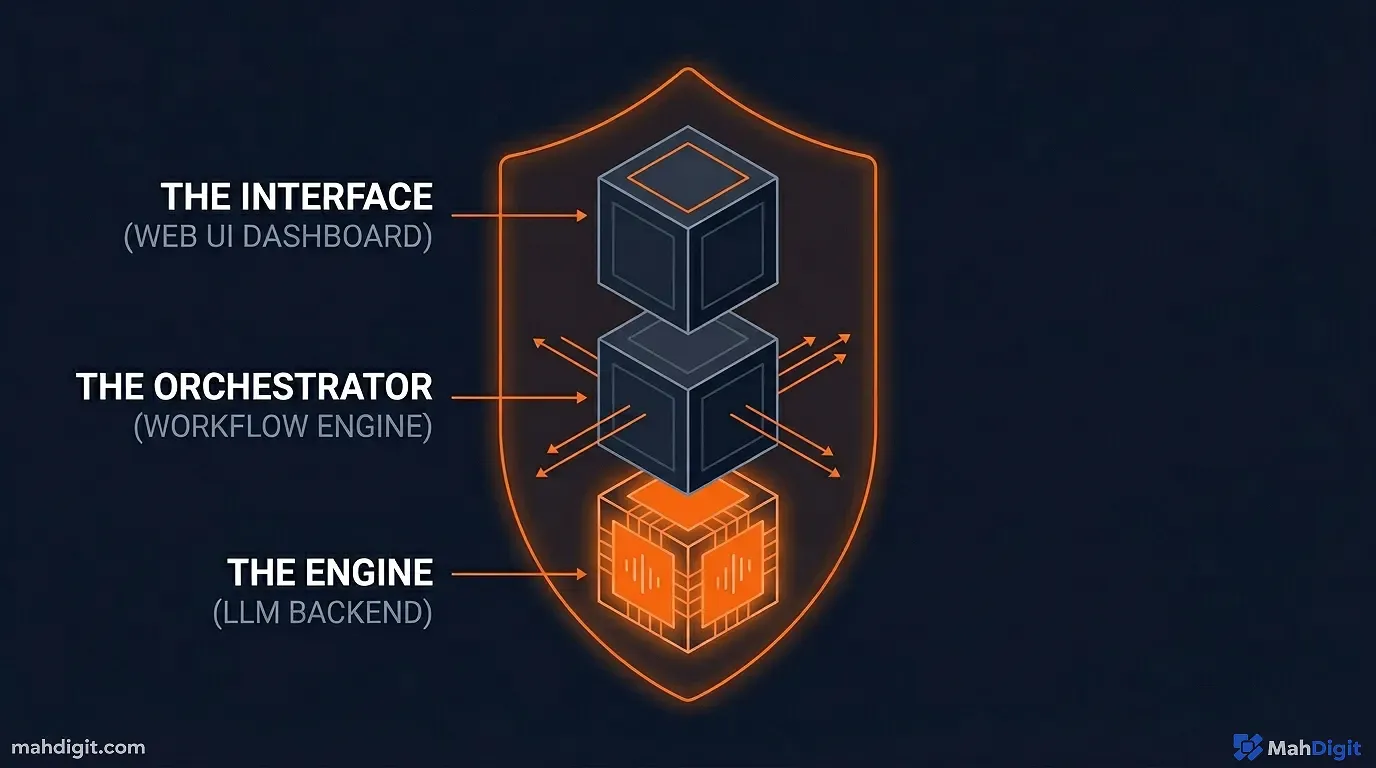
Now that Proxmox is running, we need to populate it. We are going to spin up Linux Containers (which use almost zero overhead resources) to host three specific pieces of software.
1. The Engine: Ollama
Ollama is the piece of software that changed local AI forever. Two years ago, running a local LLM required installing complex Python environments, fighting with Cuda drivers, and compiling code.
Ollama allows you to run local AI with a single command line text. It acts as the “backend” server for your AI models.
The N100 Setup: I have an LXC container in Proxmox dedicated purely to Ollama. Once installed, I download optimized “quantized” models. A quantized model is one that has had its mathematical precision slightly reduced, shrinking the model size from 16GB down to 4GB, allowing it to run lightning-fast on an N100 CPU.
I use Llama-3 (8B) or Phi-3 (Mini). They use about 4-5GB of RAM. When prompted, the N100 CPU churns out about 10-15 tokens per second. It is slower than ChatGPT, but it is fast enough to read.
2. The Interface: Open WebUI
Ollama on its own is just a terminal window. You want the ChatGPT experience. Enter Open WebUI.
Open WebUI is a stunning, open-source frontend that connects directly to your Ollama container. You access it via a web browser on your laptop or phone.
Why it’s better than ChatGPT:
- Total Privacy: I can paste confidential financial documents into Open WebUI, and no one outside my local network will ever see them.
- Local RAG: Open WebUI has built-in Retrieval-Augmented Generation. I can drag a 400-page PDF into the chat box, and my local N100 server processes it and lets me chat with the document securely.
- Model Switching: If a task requires heavy coding, I switch to a CodeLlama model. If I just want creative writing, I switch to an uncensored Llama 3 model. (For an understanding of how model differentiation matters, check my guide: best free AI tools).
- The “Pipelines” Framework: Open WebUI recently introduced a killer feature called Pipelines. This allows your local AI model to trigger external Python scripts securely. You can ask your local Llama 3 model, “What is the weather in Chicago?” and the model will autonomously trigger a Python script that hits a weather API, retrieves the data, and feeds it back into the chat. It gives your offline AI access to the live internet without paying OpenAI for the privilege.
3. The Orchestrator: self-hosted n8n
If Ollama is the brain, n8n is the nervous system. We discussed n8n earlier when we built the AI workflow for automating business, but there we were assuming you paid for the cloud version.
Proxmox allows you to host n8n via a Docker container locally.
When you host n8n locally on the same server as Ollama, an incredible synergy occurs. Because they are on the same local network, n8n can query your local Ollama AI to process data with zero API costs.
You can build workflows that run 5,000 times a day, feeding data to an LLM continually, and your monthly API bill constraint vanishes. Your only limitation is how fast the N100 can process the text.
The Home Lab Economics: A Cost Comparison
To truly understand the visceral financial power of self-hosting your AI and automation stack on a cheap Intel N100 running Proxmox, look at this aggressive, 12-month cost comparison against the standard cloud alternatives.
| Tech Stack Approach | Upfront Capital Cost | Monthly Recurring Cost | 12-Month Total Cost | Data Privacy Level |
|---|---|---|---|---|
| The Cloud Subscriptions (ChatGPT+, n8n Cloud, etc.) | $0 | ~$160/month | $1,920 | Non-Existent (Corporate owned) |
| The M4 Mac Mini Method (Local High-End Server) | $1,500 | $0/month | $1,500 | Unbreakable (100% Local) |
| The Proxmox N100 Mini PC (Local Budget Server) | $150 | $0/month (+$1 for electricity) | $162 | Unbreakable (100% Local) |
By spending explicitly $150 on hardware and dedicating a Saturday afternoon to fiercely following a Proxmox installation tutorial on YouTube, you effectively save nearly $1,800 a year in software subscription fees while identically retaining absolute, ironclad ownership of your sensitive personal data.
Part 4: Real-World N100 Automation Examples
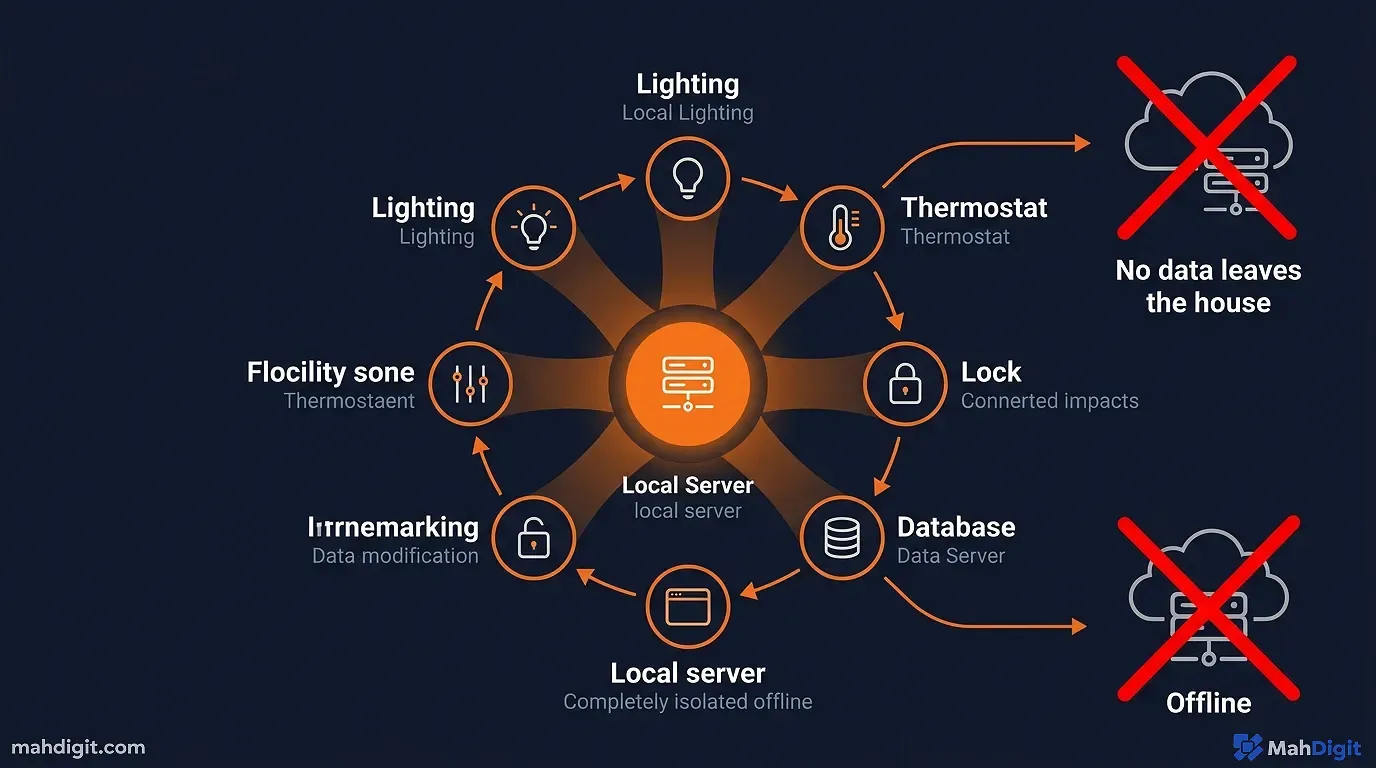
The theory is great, but what does an N100 actually do for you when it is running 24/7 in your closet? Here are three complex workflows currently running on my Proxmox server.
Automation 1: The Personal Finance Categorizer
Every night at 2
AM, my local n8n container connects to my bank via the Plaid API and pulls the last 24 hours of transactions.Bank transaction descriptions are notoriously messy (e.g., POS DEBIT 0412 SQ *LOCAL COFFEE RSTR).
My n8n workflow takes that messy string and pings my local Ollama server running Llama-3. The prompt is: “Look at this raw bank transaction. Deduce the vendor name, and assign it to a category based on this strict JSON list: ‘Food’, ‘Utilities’, ‘Software’, ‘Travel’. Output only the category.”
Ollama processes the text, returns “Food”, and n8n logs the clean data into my local PostgreSQL database. I have an automated, well categorized budget dashboard that I didn’t have to lift a finger for, and my financial data was never sent to OpenAI.
Automation 2: The “Smart Home” Brain (Local Voice Control)
Another container on my Proxmox server runs Home Assistantthe main smart home coordinator.
Through Open WebUI and Home Assistant integrations, I have piped the local LLM into my smart speakers. Instead of talking to a generic Google Assistant that fails to understand context, I talk to an AI customized to my house.
I can say, “Hey, I’m heading to bed but my son is still reading in his room, and it’s getting cold.”
The AI parses the complex natural language, recognizes the intent, and triggers Home Assistant to turn off the living room lights, dim the lights in the master bedroom, lock the front door, and bump the thermostat up by two degrees. The processing happens entirely within the walls of my home on the N100. If the internet goes down, my smart home still works well.
Automation 3: The Daily Briefing Synthesizer
I hate doom-scrolling. To fix this, I have an RSS feed scraper running on n8n that monitors 15 defining technology and finance blogs.
Throughout the day, it pulls the full text of any new articles into a local database. At 6
AM the next morning, n8n pulls all those articles and feeds them into the Ollama container sequentially. It prompts the local AI: “Synthesize this 3,000-word article into a 3-bullet point summary focusing only on actionable takeaways.”Once the AI finishes summarizing all 15 articles, n8n compiles them into a clean, minimalist HTML email and sends it to my phone via SMTP. I get a personalized, high-signal, zero-noise newsletter tailored to my interests, generated for free while I was sleeping.
Part 5: The Limitations (When the N100 Hits a Wall)
I would be doing you a disservice if I pretended this $150 machine was flawless. You must understand the physics of the hardware and its absolute limits.
The Context Window Bottleneck
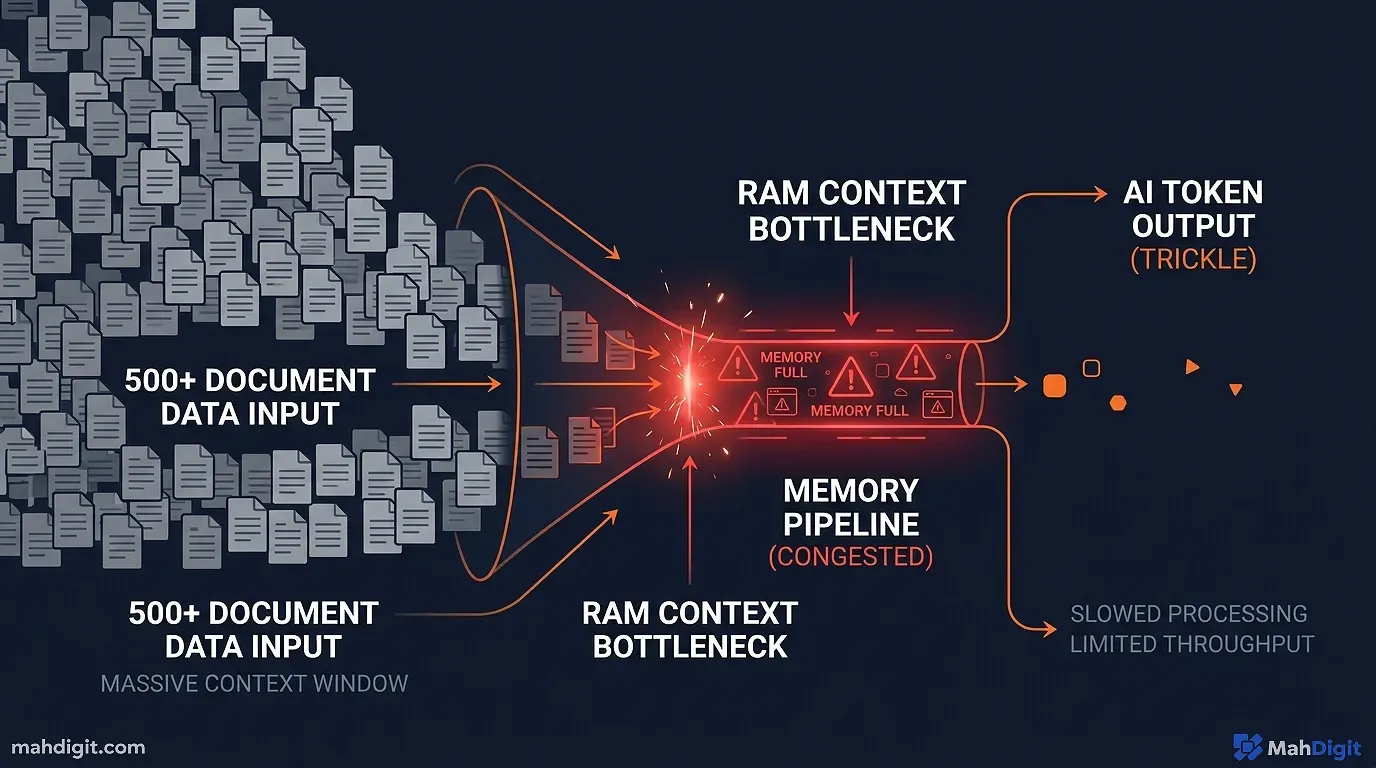
When you load a document into an AI (the context window), that information is stored in the RAM.
If you ask a local Llama-3 model to summarize a 3-page PDF, the N100 handles it beautifully. If you ask it to analyze a 400-page dense legal document, the memory usage will spike. Because the N100 lacks the high-bandwidth memory of a dedicated GPU (VRAM), the processing speed will drop from 15 tokens-per-second to 1 token-per-second, or the container will simply crash due to out-of-memory errors.
Multimodal Failure
The N100 is excellent at text generation. It is completely incompetent at image generation.
If you try to self-host Stable Diffusion or Midjourney alternatives on an N100, you will be measuring the generation time in hours, not seconds. You need a dedicated GPU (like an NVIDIA RTX 4060 or better) to dabble in local image or video AI generation.
When to Upgrade (The M4 Mac Mini Dilemma)
If your automations outgrow the N100meaning you are trying to run large 32-billion parameter models or doing heavy data-science scrapingyou need more hardware.
The traditional path is building a large server rack with used enterprise NVIDIA Tesla GPUs. However, the modern 2026 upgrade path is often abandoning x86 architecture entirely and buying an Apple Silicon Mac Mini (M4).
Because Apple’s Unified Memory architecture shares RAM directly with the GPU, a 64GB Mac Mini can load and execute terrifyingly large local AI models at blazingly fast speeds, acting as an incredible home-server node. However, this raises the entry price from $150 to $1,500. For an entry-level orchestrator, the N100 remains the undisputed value king.
Conclusion: Reclaiming Digital Sovereignty
Setting up a Proxmox AI server on an N100 CPU is not just a weekend hobby project; it is a fundamental shift in how you relate to the digital economy.
- Cancel the Subscriptions: By hosting Ollama and Open WebUI locally, you replicate 90% of the ChatGPT Plus experience for zero monthly cost.
- Embrace n8n on Proxmox: Cloud automation is expensive. Local automation is free. Wiring n8n to a local LLM creates an infinite-loop processing engine restricted only by the CPU’s clock speed.
- Understand the N100’s Sweet Spot: It is not for training models or generating images. It is for 24/7 inference of small, optimized language models (Llama 3 8B) handling text, logic, and routing.
- Privacy is the main Feature: When you run AI locally, your financial documents, private journals, and health data remain on a hard drive sitting physically on your desk.
We spent the 2010s putting all our data into the cloud because it was convenient. We are spending the late 2020s pulling it all back down because we realized what the corporations were using it for.
Buy the Mini PC. Flash the Proxmox drive. Spin up the containers. Build your own private intelligence network. If you want to understand what to run once the server is live, explore my automating workflows guide and my breakdown of the Zapier automation tutorial.
