
Most people have heard of Zapier. Most have heard of ChatGPT. Far fewer have connected them which is surprising, because the combination is genuinely one of the most useful things you can do with either tool.
When you connect Zapier and ChatGPT, you’re building workflows where AI processes information automatically, in the background, every time something triggers it. Someone fills out your contact form ChatGPT drafts a personalized reply it lands in your Gmail drafts folder. No input from you. You just review and send.
This tutorial walks through the setup and three complete automation templates you can copy and deploy today.
What You Need to Get Started
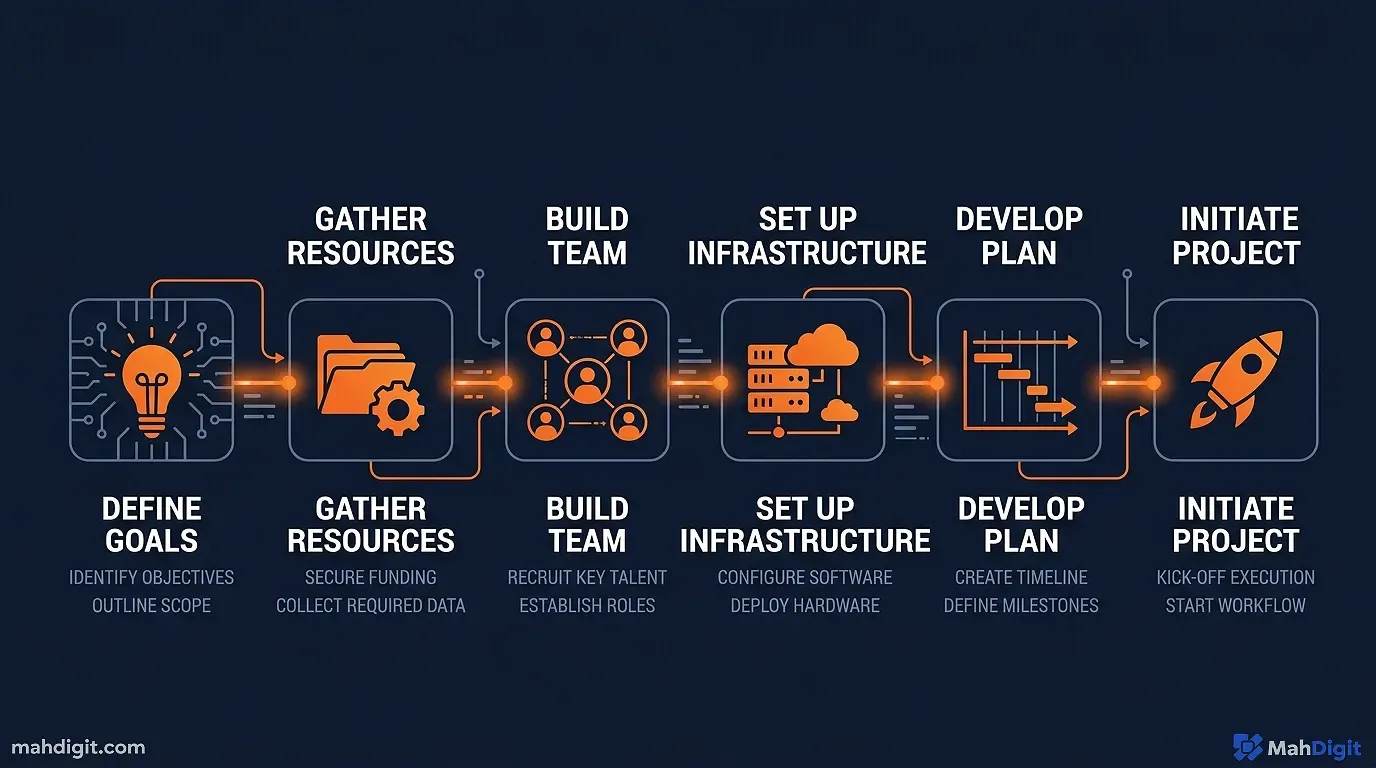
Before building anything, make sure you have:
- Zapier account Free to start, but the ChatGPT integration requires Starter ($19.99/month) or above. The free trial covers your first build.
- OpenAI API key Different from a ChatGPT subscription. Go to platform.openai.com, create an account, and generate an API key. You pay per use (very cheap for most automations often under $1/month for light use).
- The apps you want to connect Gmail, Notion, Slack, HubSpot, Typeform, etc. Zapier connects to 7,000+ apps.
The OpenAI API key distinction trips people up. Your ChatGPT Plus subscription ($20/month at OpenAI) and your API access are separate. The API is what Zapier uses, and you pay for it based on tokens processed not a flat subscription.
How the Connection Works
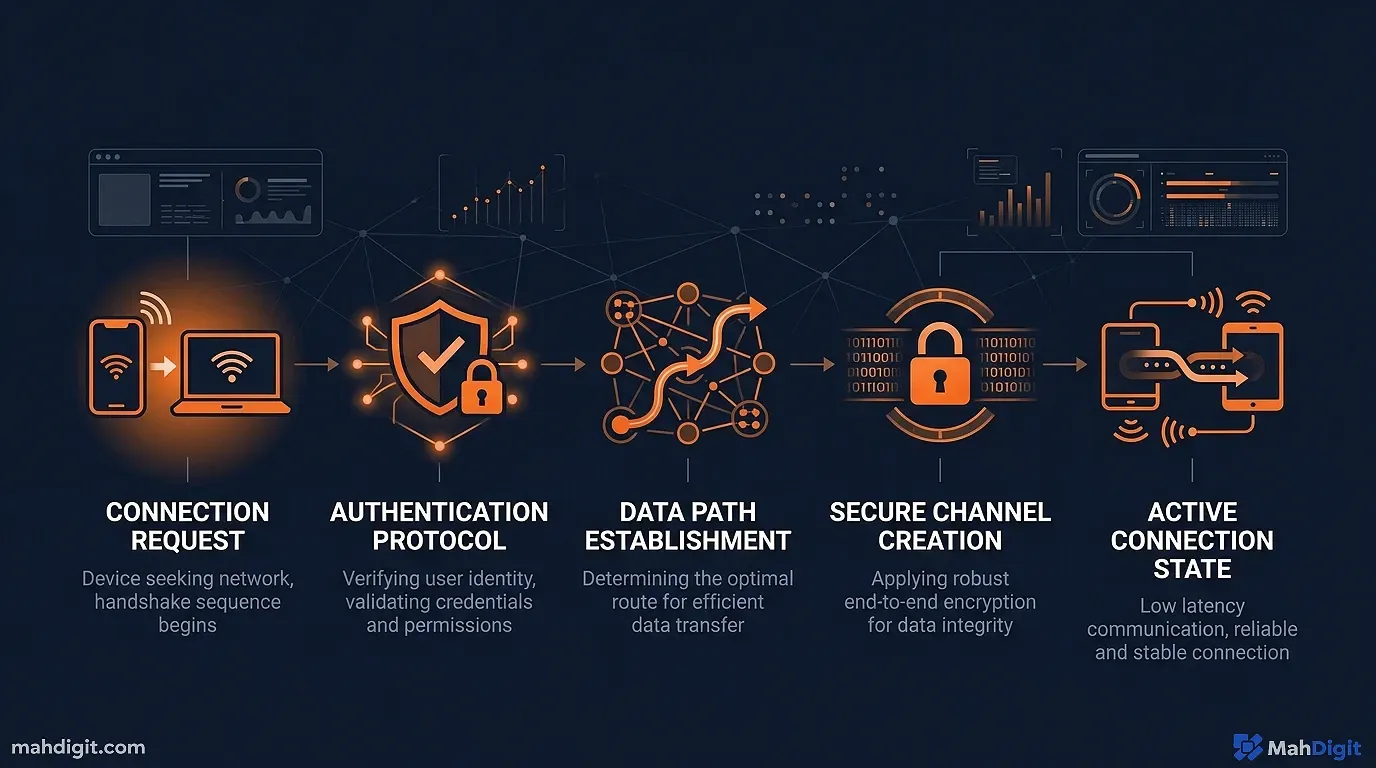
Zapier’s ChatGPT integration uses OpenAI’s API to process text as an action step in your workflow. The basic pattern:
[TRIGGER: something happens]

[ACTION 1: ChatGPT processes the data]

[ACTION 2: do something with the result]
The ChatGPT step receives text (your prompt + any dynamic data from earlier in the Zap), sends it to OpenAI’s API, and returns the response. That response then flows into the next action step creating a document, sending an email, posting to Slack, whatever you need.
Setting Up the Zapier + ChatGPT Connection
Step 1: Connect Your OpenAI Account to Zapier
- In Zapier, create a new Zap
- Add an action step and search for “ChatGPT”
- Select “Conversation” or “Send Message” as the action event
- Click “Sign In” and enter your OpenAI API key when prompted
The connection is now live. Future Zaps can reuse this connection without re-entering the key.
Step 2: Understand the Prompt Field
The prompt field in the ChatGPT action is where you write your instruction like you would in the ChatGPT interface. The difference: you can insert data from earlier steps dynamically using Zapier’s variable picker.
For example, if your trigger is a new Typeform submission that collected Name, Email, and Message fields, you can insert those values into your prompt:
You are a helpful assistant. A person named {{Name}} ({{Email}}) sent this message:

"{{Message}}"

Write a professional, friendly reply addressing their specific question.
Keep it under 100 words. Don't start with "Dear" or "Hello {{Name}}".
Every time the Zap runs, {{Name}}, {{Email}}, and {{Message}} get replaced with the actual submission data. The AI responds to the real content.
Template 1: Contact Form Personalized Draft Reply
What it does: Every time someone fills your contact form, ChatGPT drafts a personalized reply and saves it to Gmail drafts. You review and send in seconds.
Tools: Typeform (or any form) + ChatGPT + Gmail
Build it in Zapier:
| Step | Type | Settings |
|---|---|---|
| Trigger | Typeform New Entry | Select your contact form |
| Action 1 | ChatGPT Conversation | Prompt below |
| Action 2 | Gmail Create Draft | To: {{Email}}, Body: ChatGPT output |
Prompt for Action 1:
A potential client named {{Name}} sent this inquiry through our website:

"{{Message}}"

Write a personalized, professional reply email that:
- Acknowledges their specific question or request by name
- Provides a helpful first response or next step
- Keeps a warm but efficient tone
- Is under 120 words
- Ends with an invitation to schedule a call or ask follow-up questions

Return only the email body no subject line, no sign-off.
Result: Within seconds of a form submission, a tailored draft is waiting in your Gmail. You spend 30 seconds reviewing instead of 5 minutes writing.
Template 2: New Customer Personalized Onboarding Checklist
What it does: When a new customer or user is added to your CRM or spreadsheet, ChatGPT generates a personalized onboarding message and task checklist based on their industry and role.
Tools: Google Sheets (or HubSpot/Airtable) + ChatGPT + Gmail or Notion
Prompt for ChatGPT step:
A new customer has signed up. Their details:
- Name: {{Name}}
- Company: {{Company}}
- Role: {{Role}}
- Industry: {{Industry}}
- Their goal: {{Goal or use case field}}

Write a personalized welcome email (under 150 words) that:
1. Welcomes them specifically based on their role and industry
2. Suggests their 3 most relevant first steps with our product (based on their stated goal)
3. Feels warm and practical not a template blast

Then create a short checklist of 5 onboarding tasks personalized to their goal.
Format: [EMAIL] ... [CHECKLIST] ...
Result: Every new customer gets a genuinely personalized welcome, not a generic “Welcome to [Product]!” blast.
Template 3: Slack Message Meeting Brief
What it does: When someone posts a meeting request in a specific Slack channel (e.g., #meetings), ChatGPT automatically generates a concise meeting brief document and posts it as a Notion page or Google Doc.
Tools: Slack + ChatGPT + Notion (or Google Docs)
Prompt for ChatGPT step:
Someone just posted this meeting request in our team Slack:

"{{Slack message text}}"

Generate a concise meeting pre-brief with:
1. **Meeting purpose** (one sentence)
2. **Suggested agenda** (3-5 bullet points based on the context)
3. **Suggested attendees** (inferred from the message, if mentioned)
4. **Prep materials or decisions needed** (what people should come ready with)
5. **Suggested duration** (15 / 30 / 45 / 60 minutes based on scope)

Format clearly with headers. Be specific and practical.
Result: Meeting requests automatically convert to structured briefs that land in your team workspace, ready for people to review before joining.
Troubleshooting Common Issues
”ChatGPT action isn’t appearing in Zapier”
Make sure you’re on Starter plan or above the ChatGPT integration isn’t available on the free tier. If you’re on Starter and still don’t see it, search specifically for “ChatGPT by Zapier” in the app search.
”My API key isn’t working”
Double-check that:
- You’re using the API key from platform.openai.com (not your account password)
- You have billing set up on your OpenAI account (even for pay-per-use, a payment method is required)
- The key starts with
sk-if it doesn’t, it’s the wrong key
”The AI output is generic or misses the context”
Your prompt needs more specificity. Look at where you’re inserting dynamic data and ask: does the AI have enough context to produce something genuinely personalized? Usually the fix is adding one or two more fields from your trigger data into the prompt.
”The Zap works in testing but not in production”
This almost always comes down to a field mapping issue. In test mode, Zapier uses sample data. In production, it uses real data and if the field names or data formats differ slightly, the prompt can break. Run 5 real production submissions before trusting any automation fully.
Going Further: Chaining Multiple AI Steps
You can add more than one ChatGPT step in a Zap. A common pattern:
- Step 1 (ChatGPT): “What type of request is this? Reply with one word: Sales / Support / Partnership / Other.”
- Filter step: Route the Zap differently based on the category
- Step 2 (ChatGPT): Generate a context-appropriate draft reply for each category
This classification routing response pattern handles complex intake scenarios where different requests need different responses. It’s the foundation of many AI customer service workflows.
For more complex multi-step automation design, our no-code automation guide covers the full design methodology.
Estimated Costs
A quick note on the financial side:
| Volume | Est. OpenAI API cost |
|---|---|
| 50 Zap runs/month (light use) | ~$0.10-0.50/mo |
| 500 Zap runs/month (moderate) | ~$1-5/mo |
| 5,000 Zap runs/month (heavy) | ~$10-50/mo |
OpenAI’s API pricing decreases as you use more efficient models (GPT-4o mini is significantly cheaper than GPT-4o and handles most automation tasks well well). Set your ChatGPT action to use gpt-4o-mini for cost-sensitive automations.
Your main ongoing cost is Zapier’s subscription ($19.99/month for Starter), not the API usage.
Key Takeaways
Connecting Zapier and ChatGPT unlocks genuinely useful background automations that run without your input. The setup is accessible to anyone willing to spend an hour on it.
- Zapier Starter + OpenAI API key is all you technically need
- The prompt field is where most of the intelligence lives write it carefully
- Dynamic data (from your trigger) is what makes outputs feel personalized, not generic
- API costs are almost negligible for most use cases
- Test with 5 real production runs before trusting any Zap fully
Related Articles
- Notion AI Review: Is It Worth the Add-On Cost?
- Perplexity AI Review 2026: The Best AI Research Tool?
- What Is AI, Really? A No-Jargon Guide for 2026
What’s Next
- For the broader design method behind AI workflows, see How to Build an AI Workflow That Saves 10+ Hours a Week
- If you want a tool-by-tool comparison of automation platforms (Zapier vs Make vs n8n), our No-Code AI Automation guide covers all three
- Need better AI outputs from your prompts? The AI Prompting Guide applies directly to creating Zapier prompt templates
External Resources
- Zapier ChatGPT Integration Guide official documentation for connecting ChatGPT to Zapier
- OpenAI API Documentation official guide for getting your API key and understanding usage pricing
