I wish someone had given me a proper roadmap the first time I opened ChatGPT. Instead, I typed “write me a marketing email,” got back something that sounded like a form letter from 2008, and closed the tab thinking this is overrated.
That was a mistake mine, not ChatGPT’s. The tool is genuinely powerful, but only once you understand how it actually works and how to talk to it. After using it daily for well over a year and watching dozens of colleagues go through the same learning curve, I’ve put together the guide I wish I’d had at the start.
This is a practical, week-by-week plan for getting comfortable with ChatGPT. If you’re a professional or knowledge worker who wants to actually use AI not just dabble this is for you.
What you’ll learn:
- How to get set up (free tier is fine to start)
- How conversations actually work
- Which real work tasks to try first
- When and whether to pay for ChatGPT Plus
Day 1: Account Setup and Your First Conversation
Signing Up
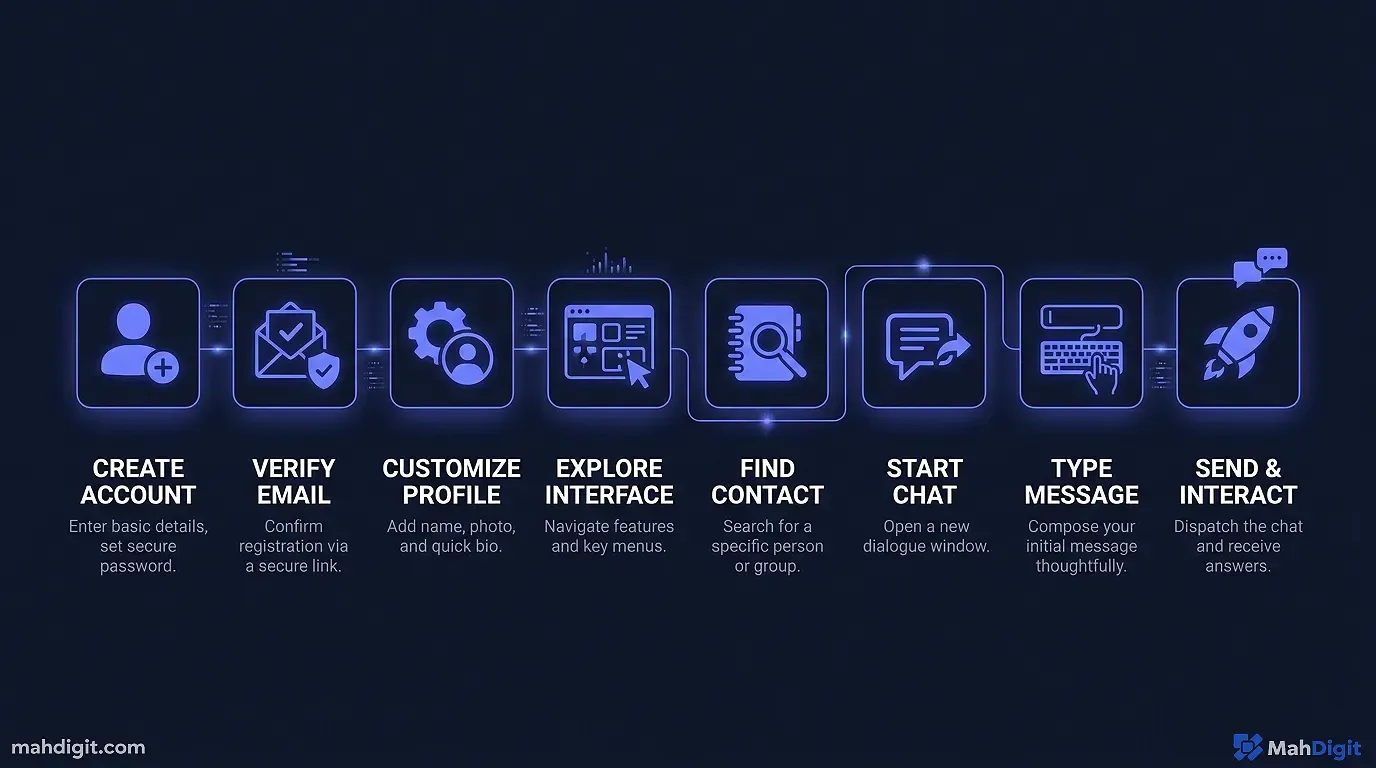
Go to chat.openai.com and create a free account. You can sign up with Google or your email. The free tier gives you access to GPT-4o mini (fast, capable) with limited access to GPT-4o (the more powerful model). For getting started, free is completely fine.
One thing to decide upfront: do you want ChatGPT Free or ChatGPT Plus ($20/month)? Here’s my honest take start free. Use it for two weeks. If you bump into the rate limits or need features like file uploads, image generation, or the advanced reasoning models, then upgrade. I know plenty of people who’ve been on the free tier for months and get real value from it.
Your First Conversation
Don’t overthink your first prompt. Open a new chat and try something genuinely useful to you right now. Don’t type “tell me about AI” that’s a Wikipedia query. Try something like:
I need to write a follow-up email to a client who hasn't responded in two weeks.
The project is a website redesign, and I want to be friendly but also check if
they're still interested. Keep it under 100 words.
Notice what it gives you. Then notice you can respond with something like “make it a bit warmer” or “add a specific question about their timeline.” That back-and-forth is the whole game.
Understanding ChatGPT’s Context Window
Each conversation has a memory ChatGPT remembers everything said in the current chat. But when you start a new chat, it starts completely fresh. This is both a feature and a limitation. For longer projects, keep everything in one conversation. For a quick one-off task, a new chat keeps things clean.
Day 2: Learning the Basics That Nobody Explains
Custom Instructions Set These Up First
Before you start typing prompts all day, spend five minutes on Custom Instructions. Click your profile icon “Customize ChatGPT.” Here you can tell ChatGPT:
- Who you are (“I’m a freelance UX designer who works with small businesses”)
- How you want it to respond (“Always respond concisely; prefer bullet points over long paragraphs; skip the preamble”)
Once you set this up, every conversation benefits from the context. I forgot to do this for my first two months and it was genuinely annoying I kept re-explaining my role and preferences in every chat.
How to Write a Better Prompt
The single most important skill is prompt structure. A basic formula that works for almost anything:
[Role] + [Task] + [Context] + [Format]
Example: “You are a senior copywriter. Write a product description for [product] targeting [audience]. The tone should be [tone]. Keep it under 80 words.”
This isn’t about magic words it’s about giving ChatGPT enough context to give you something actually useful. Vague in, vague out. Specific in, specific out. As we’ve covered in our complete guide to AI prompting, the structure of your prompt matters far more than most people realize.
Iteration is the Point
The biggest beginner mistake is treating ChatGPT like a search engine one query, read the answer, done. It works better as a conversation. Your job is to keep nudging:
- “This is good, but can you make it more direct?”
- “Too formal. Try again but write it like I’m talking to a colleague.”
- “That second paragraph is the best part expand on that.”
Each iteration gets you closer to what you actually need.
Day 3: Real Work Tasks to Try First
This is where it gets valuable. Pick tasks from your actual work don’t test ChatGPT with hypotheticals, test it on something you’d normally spend 30+ minutes doing.
Email Drafting
Give ChatGPT your raw thoughts and let it shape them into a polished email. Example: “I need to push back on a client’s scope creep request without damaging the relationship. Here’s what I want to say: [your rough notes]. Write a professional but firm email.”
The output won’t be perfect, but it’ll be 80% there and editing takes a fraction of the time that drafting does.
Meeting Preparation
Before any important meeting: “I’m meeting with a potential enterprise client tomorrow to discuss migrating their CRM. They’re currently using Salesforce. Give me 10 smart questions I should ask to understand their pain points and decision-making process.”
I’ve walked into discovery calls dozens of times with a list like this and looked genuinely prepared because I was.
Summarizing Long Documents
Copy-paste a long email thread, report, or article and ask: “Summarize this in three bullets. Focus on what I need to action, not background context.” This alone saves me 20-30 minutes on a heavy email day.
Content Outlines
If you write anything reports, proposals, blog posts, presentations ask ChatGPT to outline it first. Give it the audience and goal: “Outline a 10-slide presentation for a non-technical executive audience on why we should invest in AI tooling for our customer support team.” Adjust the outline, then write from there.
Day 4: Advanced Features Worth Knowing
File Uploads (Plus/Free with limits)
You can upload PDFs, Word docs, spreadsheets, and images. ChatGPT will read the content and answer questions or perform tasks based on it. I use this constantly for: reviewing contracts, extracting data from messy spreadsheets, getting quick summaries of research papers.
Fair warning: it handles text documents much better than complex spreadsheets with lots of formulas. For heavy data work, you’re better off using Claude (which has a larger context window) or ChatGPT’s Code Interpreter feature.
Browsing / Search (Available in GPT-4o)
ChatGPT can search the web in real time (if you’re on a model that supports it look for the globe icon in the chat bar). This is useful for current events, recent tool pricing, or anything that might have changed. That said, for serious research, I still prefer Perplexity AI because it cites its sources more reliably.
Image Generation (DALL-E)
You can generate images directly in ChatGPT. Type “generate an image of [description]” and it’ll use DALL-E. This is genuinely useful for quick visuals blog post concepts, social media graphics, mood boards. The quality has improved a lot; I use it for first drafts of visuals before handing off to a designer.
Custom GPTs
Under the “Explore GPTs” section, you’ll find custom versions of ChatGPT fine-tuned for specific tasks. Some useful ones: DALL-E for image generation, Code Copilot for developers, and various writing assistants. I’ve found a few that save real time, but they’re hit or miss experiment and don’t assume they’re better than a well-crafted prompt to the base model.
Day 57: Building the Habit
The difference between people who get value from ChatGPT and people who give up on it comes down to one thing: making it habitual. Here’s how to get there.
Start a “ChatGPT First” Rule
For any task that takes more than 10 minutes, try ChatGPT first for even just 2 minutes before doing it yourself. Not because it’ll always be faster sometimes it won’t but because you’ll build pattern recognition for when it helps.
After two weeks of this, you’ll have a clear mental model of: “this type of task ChatGPT saves time” vs. “this type of task not worth it.”
Keep a Prompt Bank
When you write a prompt that works really well, save it. I keep a simple Notion page with prompts organized by task type: email templates, research queries, summarization formats, etc. Over time this becomes a personal library that speeds up your whole workflow.
What I Outsource to ChatGPT Daily
After a year of daily use, here’s what I let it handle without much friction:
- First drafts of any email longer than 3 sentences
- Meeting agenda preparation
- Research question lists
- Summarizing documents before I read them fully
- Generating options when I’m stuck on a decision
- Checking my writing for clarity
That’s not everything. Relationship-driven communication, anything requiring judgment calls, creative direction that stays with me. ChatGPT does the grunt work; I do the thinking.
Free vs. ChatGPT Plus When to Actually Pay
Let me give you a straight answer: the free tier is enough to learn and to handle most everyday tasks.
Upgrade to Plus when:
- You hit rate limits regularly (meaning you’re using it heavily enough to justify $20)
- You need reliable access to GPT-4o (not just GPT-4o mini)
- You need advanced data analysis (Code Interpreter), consistent image generation, or large file uploads
- You want to access the experimental “o1” reasoning models for complex problems
Stick with free if:
- You’re still learning and experimenting
- Your usage is light to moderate
- You primarily use it for writing and summarization tasks
Honestly, I went two months before upgrading, and those two months were useful I knew what I was paying for when I finally did.
Common Beginner Mistakes
Trusting the output without reading it. ChatGPT will confidently state wrong things. Always read the output before using it. For anything involving facts, numbers, or specific claims, verify independently.
One-shot prompting. Typing one prompt and accepting the first answer without iteration. The first output is almost never the best output treat it as a starting point.
Using it for tasks that need your judgment. Sensitive conversations, legal advice, medical questions, anything that requires real expertise. ChatGPT can help you think through these, but don’t outsource the decision itself.
Ignoring the system prompt / Custom Instructions. Skipping this setup means you re-explain yourself in every conversation. Five minutes of setup saves hours over time.
Key Takeaways
Getting started with ChatGPT is really about getting comfortable with a new way of delegating work. The tool is more capable than most beginners expect and more limited in specific ways than most people realize.
- Set up Custom Instructions first it shapes every future conversation
- Treat it as a conversation, not a search engine iterate, don’t one-shot
- Start with real tasks from your job, not practice prompts
- Free tier is enough to start; upgrade once you know your usage patterns
- Build a prompt bank to compound your efficiency over time
- Always review the output never copy-paste without reading
Related Articles
- Best Free AI Tools in 2026: What You Actually Get
- How to Build an AI Workflow That Saves 10+ Hours a Week
- Claude AI Review 2026: The Best AI for Writing?
What’s Next
You’ve got the foundation. Here’s where to go from here:
- Deepen your prompting skills with our AI Prompting Guide: Write Prompts That Get Real Results the R-C-T-F formula changes everything
- Once you’re comfortable with ChatGPT, read our ChatGPT vs Claude vs Gemini comparison to understand when to use which tool
- Ready to go deeper on AI tools? The Best AI Tools for Productivity in 2026 gives you the full landscape
Got questions about your specific setup or use case? Reach out we read every message.
External Resources
- OpenAI’s ChatGPT Getting Started Guide official documentation for new users
